If you have your iTRACK account set up for Numeric Assessments, then you may wish to import the bulk of your data rather than using the Enter Pupil Results page.
Here you can enter a score for each of your papers on a per subject basis, then enter your 'Max Points' which is the total number of points/marks available across all your papers. Once all that is added, iTRACK will then calculate what overall percentage is for your pupils'.
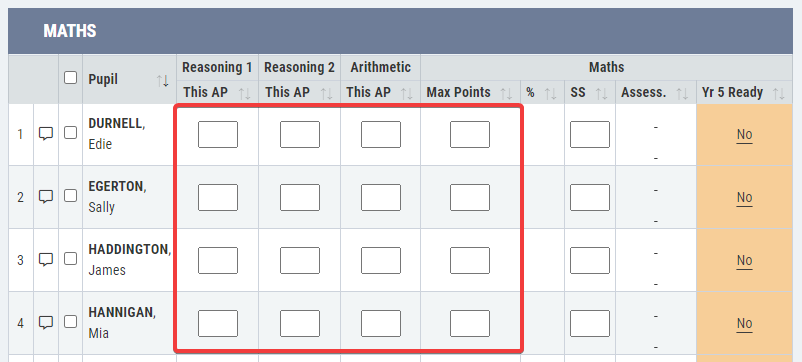
While this can be entered manually, it can also be uploaded on a year-by-year basis which you may find a more efficient process. To do this, visit the Administration section of the left-hand menu and click on the Import Numeric Assessments tab:

Step 1:
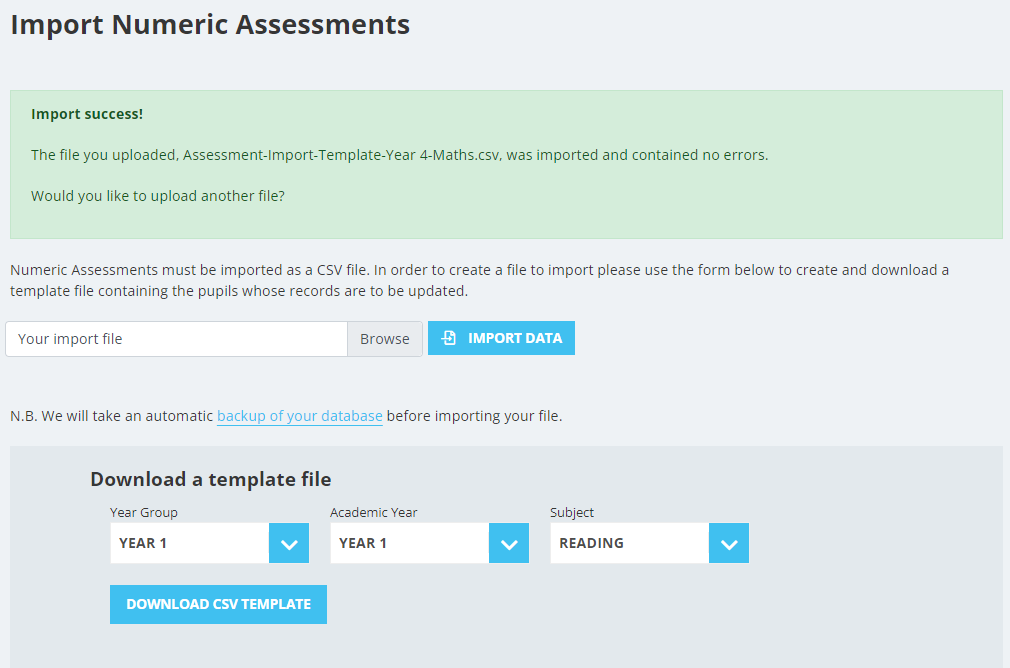
If you have not previously done so, you will need to download our Excel (CSV) template to populate with your data. Select the Year Group, the Academic Year and the Assessment Point you wish to upload and then click the blue download CSV template button.

Step 2:
Populate the Excel spreadsheet with your results, for as many of the papers as you wish to upload, along with the maximum number of points. Once finished, be sure to save the document, and leave any columns blank that you don't wish to upload.

Step 3:
Click Browse to open the search box, locate your file, and then click the blue Import Data button to begin your upload.

Once complete, you will notice a green message appear as shown below. If you have any errors showing, please ensure your CSV is populated correctly and try the upload process again. If it says Import success! then your upload is complete.