Within Manage Subjects, you can add or edit any curriculum statements/objectives for both the core and foundation subjects. Here is a list of everything you can use this tool for:
- Edit existing statements’ text, font, colour or add a highlighted/colour-coded background.
- Add your own statements (up to 75 per year and topic).
- Delete any of the current statements.
- Break some of the lengthier NC statements down into smaller objectives. E.g. 1 statement containing 3-4 points/sentences can be broken down by writing 3-4 new statements containing each individual point, re-ordering them and then deleting the original one.
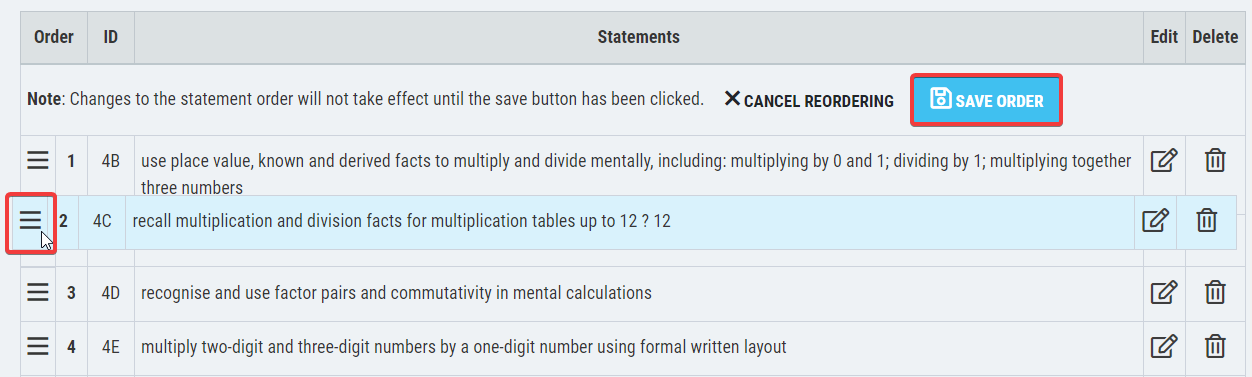
- Rearrange the order of objectives. This allows you create your curriculum in an ascending order of difficulty, by moving commencing statements to the top and the more difficult lower down.
To add or edit statements for a component, click on any available (light blue) cell for the component and year group you wish to edit (in the case below, we are looking at the 'Y4 Multiplication & Division' curriculum):
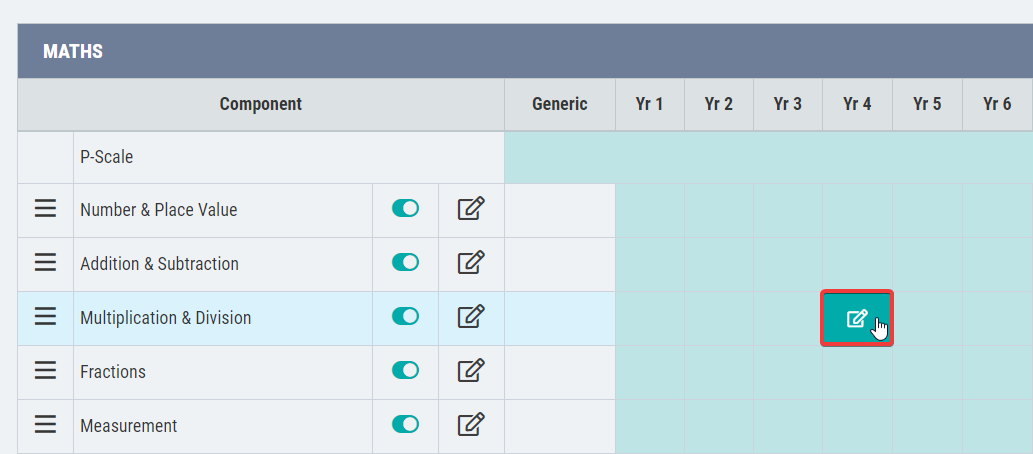
When you hover over an available cell, the 'edit' icon will appear. Click on the cell and you will be redirected to the statement editor page:
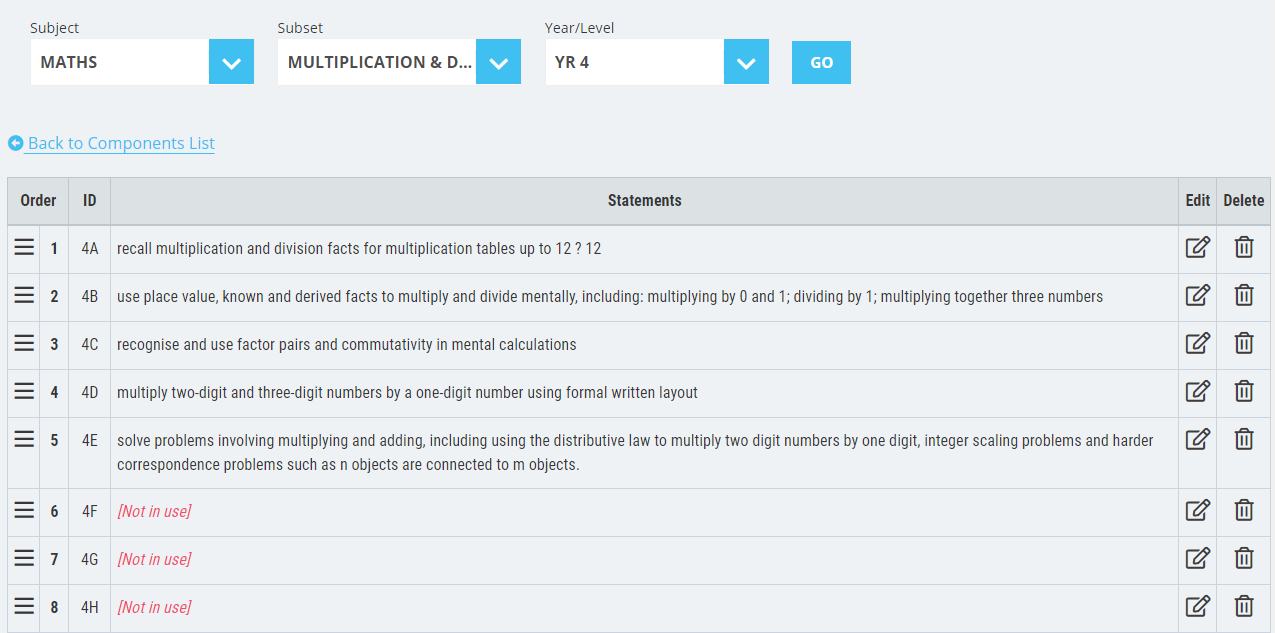
From here you can now navigate to all the subsets related to that subject using the drop downs and the 'GO' button. These statements will show when you select 'full assign' in the 'Enter Pupil Results'.
Adding & Editing a Statement/Objective
Much like adding a component, click the 'edit' icon on the statement you wish to edit, or on an unused blank statement [Not in use] if you want to create a new one.
A text box will then appear for you to write your statement in:
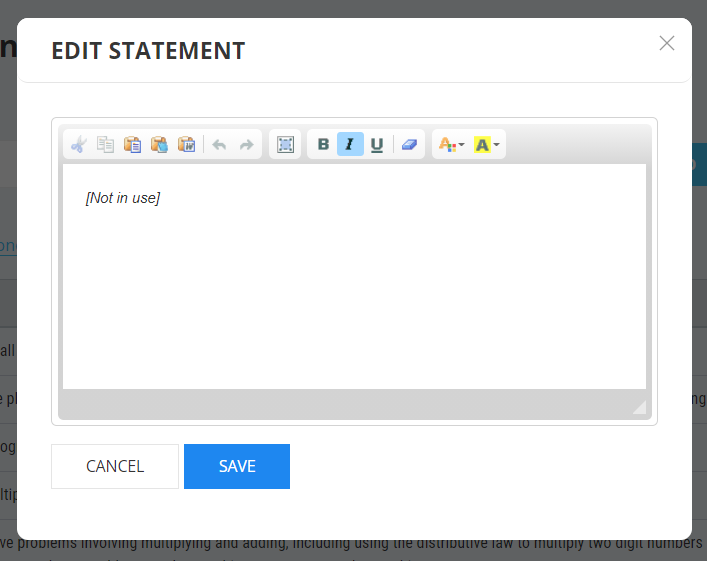
Once you have written or edited your statement click the 'Save' button.
Formatting a Statement/Objective
You may wish to highlight the statement text in different colours, or format the text to suit your requirements. Once the editable textbox appears, use the toolbar at the top of the to use the formatting tools as shown below:
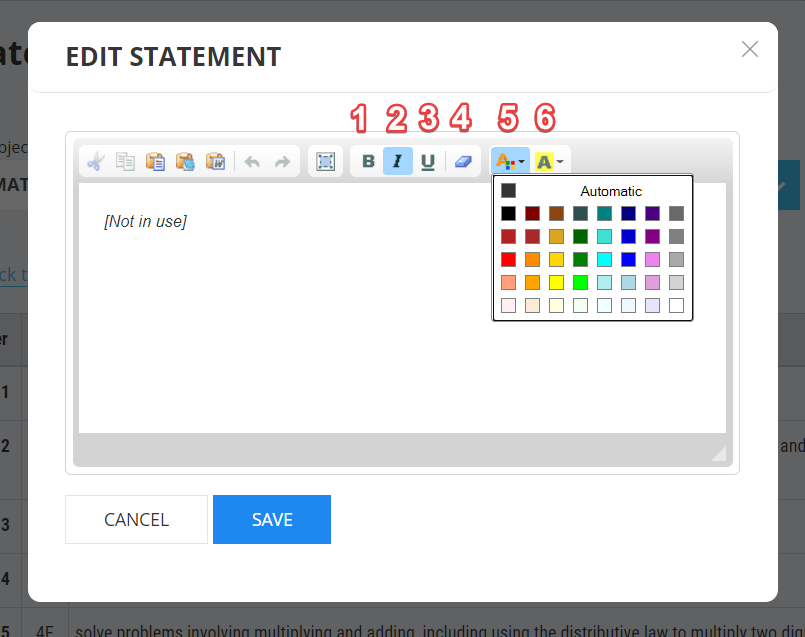
- Bold.
- Italic.
- Underline.
- Erase/remove formatting.
- Change font colour.
- Highlight/colour-code text.
Please remember that once you have finished editing your statement, you must click the 'Save' Button at the bottom of the text box.
Deleting a Statement/Objective
To delete a statement click the 'bin' icon (delete button) in the statement row.

Changing the Order of Statements
Click, hold and drag the ‘3 dashes’ icon to move the statement and let go when you are happy with its new placement. Once you are finished moving one or more objectives, you must remember to press blue ‘SAVE ORDER’ button.