
Adding & Editing a Statement/Objective
Much like adding a component, click the 'edit' icon on the statement you wish, or on an unused blank statement [Not in use] if you want to create a new one.
A text box will then appear for you to write your statement in:
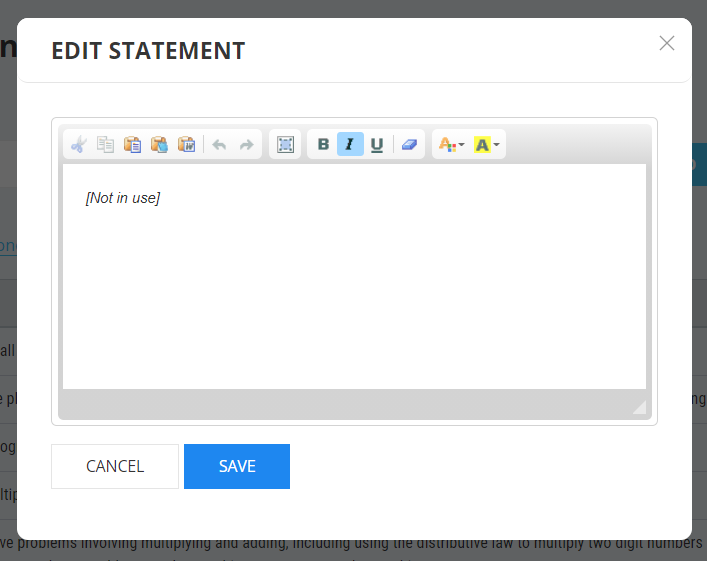
Once you have written or edited your statement click the 'Save' button.
Formatting a Statement/Objective
You may wish to highlight the statement text in different colours, or format the text to suit your requirements. Once the editable textbox appears, use the toolbar at the top of the to use the formatting tools as shown below:
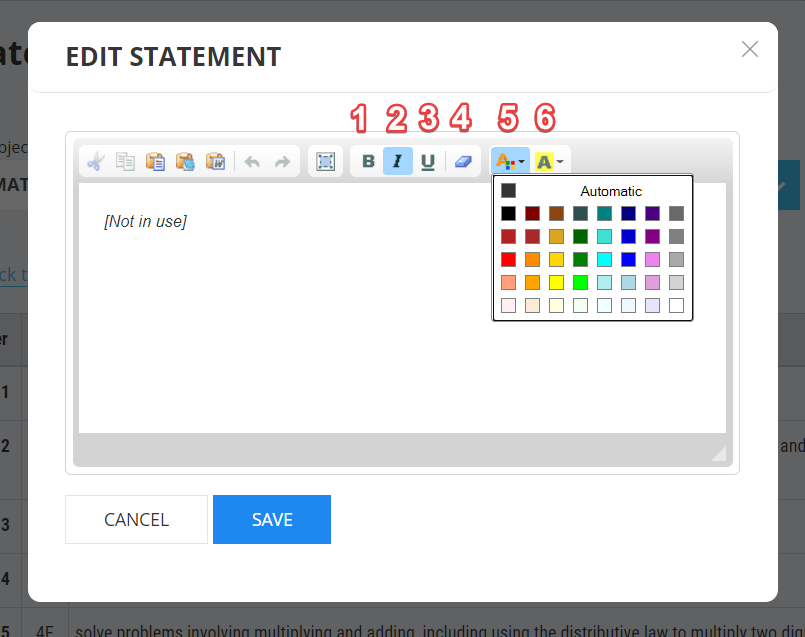
- Bold.
- Italic.
- Underline.
- Erase/remove formatting.
- Change font colour.
- Highlight/colour-code text.
Please remember that once you have finished editing your statement, you must click the 'Save' Button at the bottom of the text box.
Deleting a Statement/Objective
To delete a statement click the 'bin' icon (delete button) in the statement row.

Changing the Order of Statements
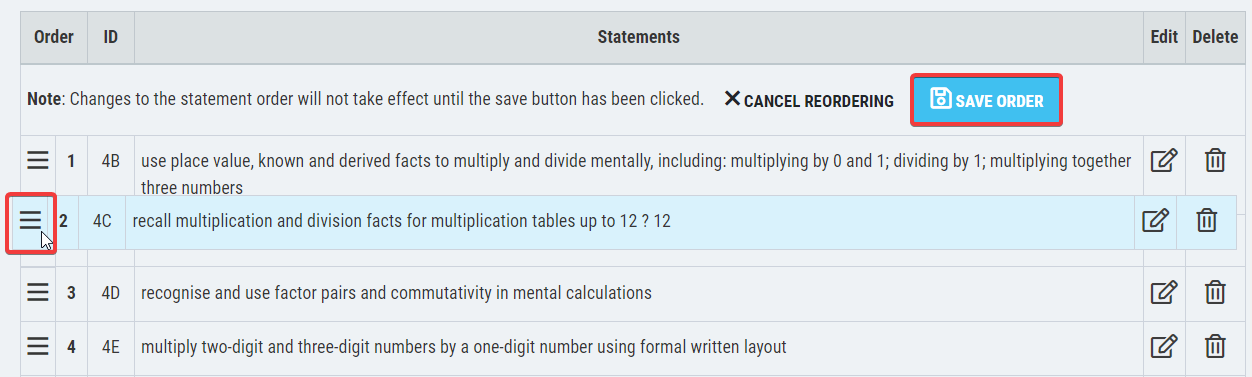
Click, hold and drag the ‘3 dashes’ icon to move the statement and let go when you are happy with its new placement. Once you are finished moving one or more objectives, you must remember to press blue ‘SAVE ORDER’ button.
If you get stuck with anything, please don't hesitate to get in touch with our support team or your Education Consultant, who will be happy to help.