On any page of iTRACK, you can use the 'Print Page' button located in the top right hand corner of any page. Alternatively, you can use the keyboard shortcut by pressing the CTRL + P keys together on your keyboard.
 |
Print icon for iTRACK |
How to Print in Colour, Adjust the Layout & Scale to Fit a Page
It is worth noting that different web browsers have these options in slightly different places. Please scroll down to the part in the guide relevant to the browser that you are using.
Google Chrome (Recommended)
Once you have clicked the 'Print Page' button, a new window should appear. The print preview will be to the left and to the right you should see 'More settings' as shown in red:
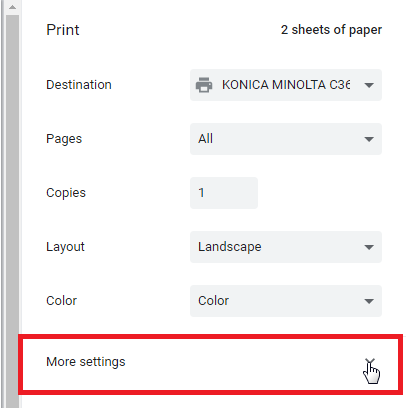
Once 'More settings' has been selected you should see more options have appeared below it.
1) Printing in Colour
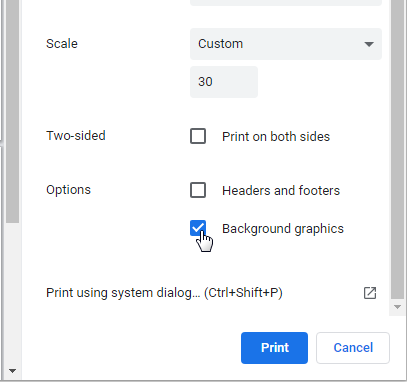
Scroll down to 'Options' at the bottom and tick the box labelled 'Background graphics'.
2) Scaling & Layout
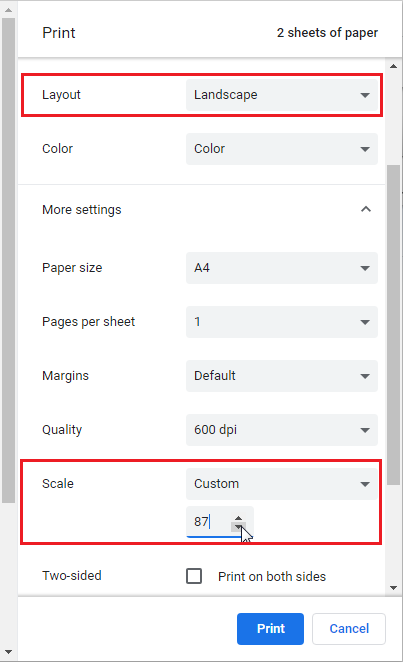
Once 'More settings' has been selected you will notice more options have been made available to you.
- The 'Layout' setting highlighted in red below will change the orientation of the document from Portrait to Landscape.
- The Scale setting also highlighted below once changed from 'Default' to 'Scale' allows you to scale the content smaller or larger.
Internet Explorer 11 ( For Windows 7 & 10)
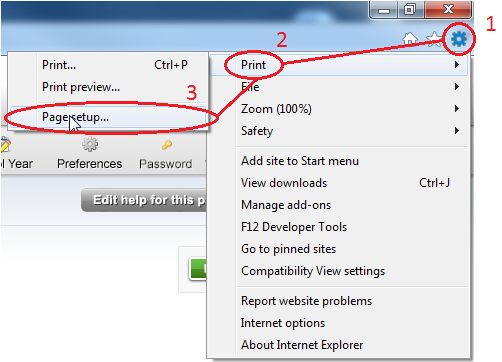
1) Click the cog icon in the top right hand corner of the internet explorer window.
2. Select the 'Print' option from the sub menu
3. Select the 'Page Setup...' option from the subsequent sub-menu.
1) Printing in Colour
Once on the 'Page Setup', tick the option that reads 'Print Background Colours and Images' and press 'OK'.
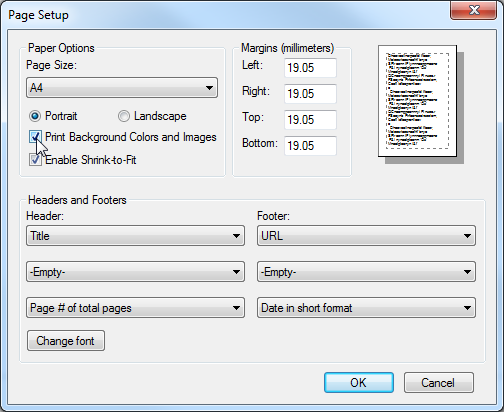
This option should now be saved for ALL future prints.
2) Scaling & Layout
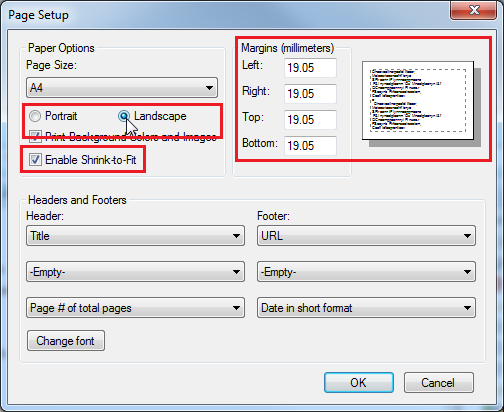
Once navigated to the 'Page setup' window, you have the option to change the page layout from Portrait to Landscape. You can also opt in to 'Enable Shrink-to-Fit' which should fit it automatically to a single page. It may also help to change the margins if the font size comes out too small.
Mozilla Firefox
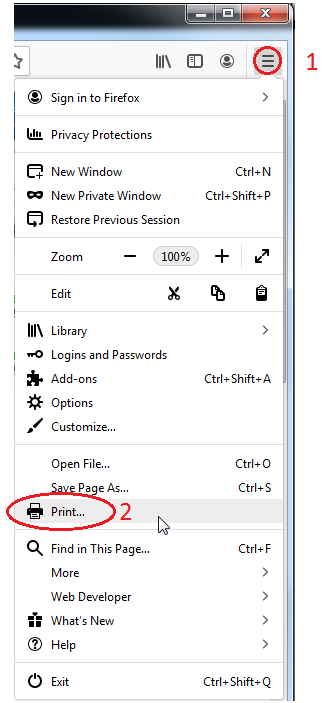
1. Click the 3 lines icon in the top right corner of your Firefox window to access the menu
2. In the sub menu press the 'Print...' button
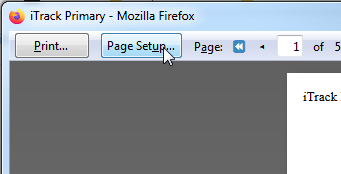
A new window will then appear, click the 'Page Setup...' button in the top left corner.
1) Printing in Colour
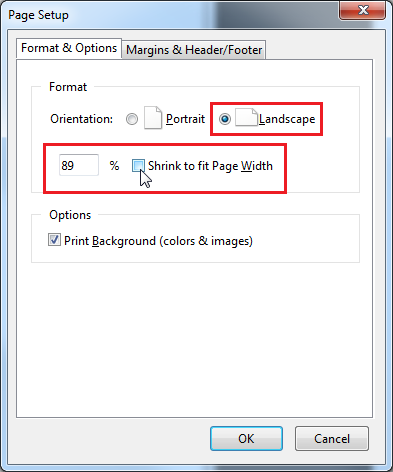
Tick the box under 'Options' labelled 'Print Background (colours & images) and press 'OK'.
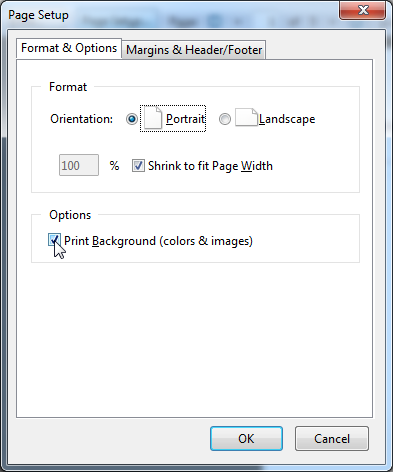
This option should now be saved for all future prints.
2) Scaling & Layout
Once navigated to the 'Page setup' window you have the option to change the page layout from Portrait to Landscape. You may also opt in to 'Enable Shrink-to-Fit' or choose a scale that suits you.